
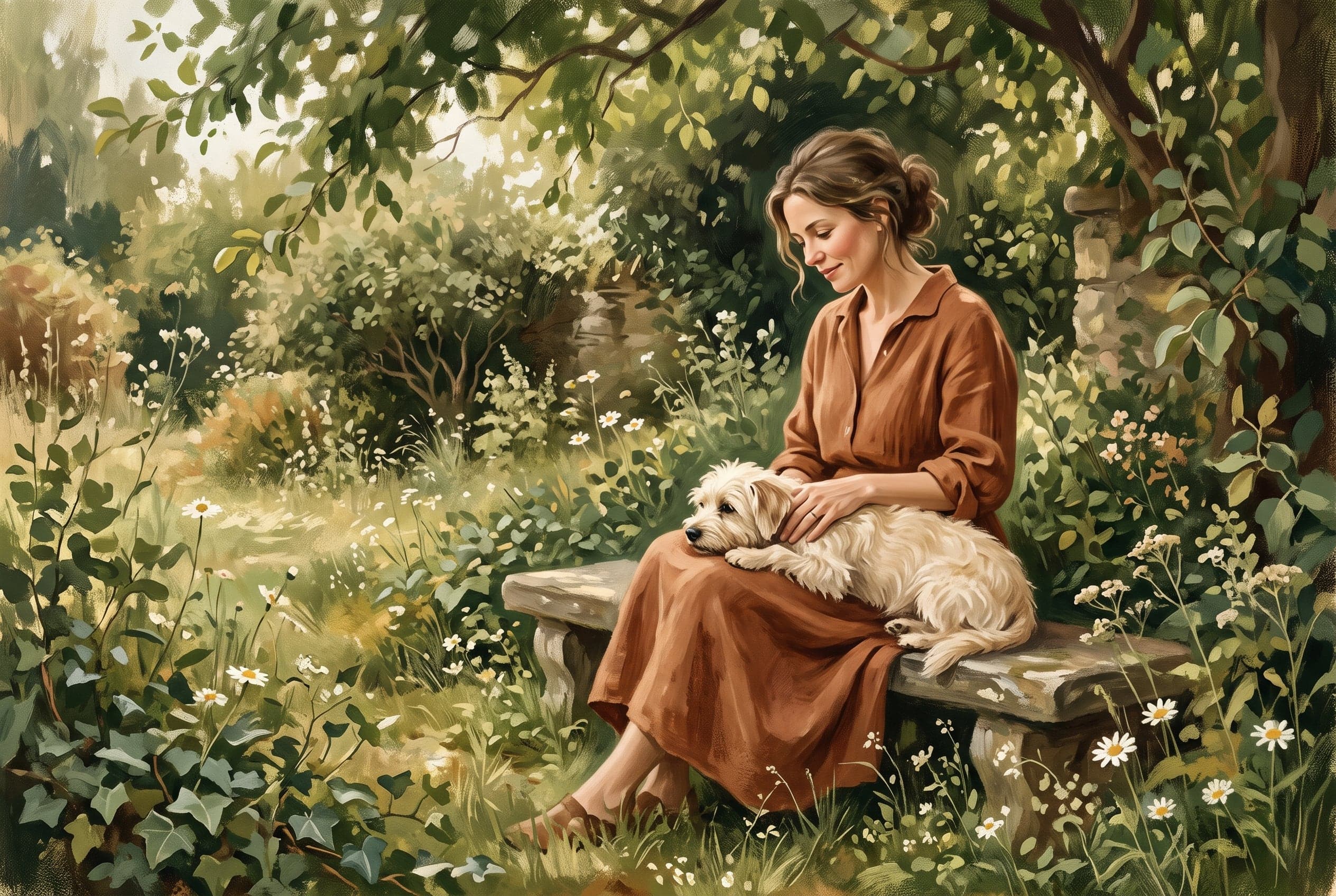
Choose a sharp, evenly lit photo that shows the person, pet or place you want to recognize. Leave some room around the subject, then describe the look you want. CanvasGenie uses the photo as a reference for a new artistic interpretation, so compare the result with the original before ordering.
The image above is illustrative AI artwork, not a before-and-after example or a customer photo.
Start with a clear subject
- For people, choose a photo where the face is in focus and visible. Check that hair, glasses or other distinctive features are not hidden by shadows.
- For pets, look for sharp eyes and visible ears, muzzle and coat markings. For dark fur, soft window light can reveal detail. See the dog and cat photo tips.
- For places, pick a view that shows the building, landscape or landmark you care about. Avoid a foreground object covering the main feature.
A simple background makes the subject easier to see. For a person-and-pet portrait, start with a photo of them together. If several people or pets appear, choose an image where each is clear, then check each face or set of markings in the result.
Check light, focus and crop
Use even natural light when possible. Strong backlight can leave a face dark, while glare can hide detail. Zoom in on the original: if eyes, fur or architectural edges are already smeared, a larger file alone will not restore the missing detail.
Leave space around heads, ears, paws and important edges. A tight crop may remove something you want in the composition. Consider the shape of the intended print, too: a wide landscape and a close portrait need different amounts of room. The aspect ratio guide explains how image shape relates to canvas shape.
Check the file before uploading
CanvasGenie's photo upload checks the image and prepares it in your browser. These limits describe that workflow:
| Photo requirement | CanvasGenie guidance |
|---|---|
| File type | JPEG, PNG, WebP, HEIC or HEIF; HEIC and HEIF conversion depends on browser or fallback support. |
| Minimum short edge | 512 pixels. |
| Softness warning | Below 1024 pixels on the short edge. |
| Prepared image | At most 2048 pixels on the longest edge and 5 MiB as a JPEG. |
| Description | 10 to 500 characters after normalization. |
Use the original file rather than a repeatedly compressed message attachment when available. If a HEIC or HEIF file cannot be prepared, try converting a copy to JPEG or PNG and uploading that. Conversion does not recover details that were missing in the original.
What if the only photo is old, blurry or difficult?
An old photo may be meaningful even if it is imperfect. Scan or photograph it evenly, without glare, and use the clearest copy you have. A higher-resolution scan can capture the information in the print, but cannot recreate details that were never visible. For motion blur, a dark face or a cropped ear, try a different frame if one exists. Otherwise, describe the important feature and expect to review several details carefully. The interpretation may still change or invent details.
Add a description that guides the art
Select photo mode and upload one reference. Add a description naming the subject, important features and desired treatment, then choose a square, portrait or landscape shape. These are requests to adapt to the actual photo, and the result may change details:
- Person and pet: “Repaint the person and dog in this photo in a comic-book style. Keep both recognizable, preserve their number and pose, and use a playful backdrop.”
- Pet: “Create a bold graphic portrait of the dog in the photo, keeping the white chest and folded ear visible, with a simple cream background.”
- Place: “Create a painterly view of the stone house in the photo, keeping its red door and garden path, in soft afternoon light.”
An artistic style can change detail as well as color and texture. If a distinctive feature matters more than a dramatic effect, ask for a simpler treatment and inspect the result closely.
Review and troubleshoot before ordering
Compare the artwork with the reference: check faces, eyes, ears, markings, hands, building details and any other feature that matters. If something is wrong, try a sharper or less tightly cropped photo, or revise the description to name that feature plainly. The result is not an unchanged photo or a human-painted commission, and an exact likeness is not guaranteed.
Once the artwork looks right, confirm it and choose a print format and an available size. You can choose canvas without an outer frame, framed canvas, an unframed poster or a framed poster. Check the crop and presentation in the mockup before ordering. Use the canvas size guide to compare sizes. See photo to painting for the workflow or pet portrait canvas for pet-specific choices.
Frequently asked questions
Can I use a photo with more than one person or pet?
You can try a photo with multiple subjects. Choose one where each is clearly visible, then check each face and distinctive feature in the generated artwork.
Will enlarging a small photo make it sharper?
Increasing the pixel dimensions cannot restore details missing from a blurry original. Start with the clearest original or scan available and check the result carefully.
Is my original photo printed on the canvas?
CanvasGenie generates a new artistic interpretation from the photo. Review the artwork and print mockup before ordering because the interpretation may change details.